
Choose the context
Name the Unsticky or section the agent should work from. A section called Ready is still an ordinary section.
Organize your thoughts ↗Your stickies. Your agent.
Keep the context in an Unsticky. Bring your own agent to help with the work.
Start with ordinary language
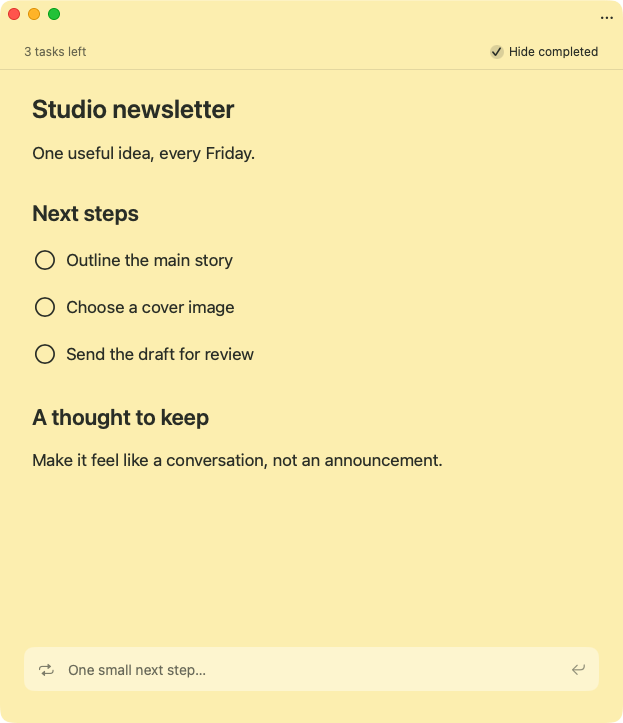
“Read my Studio newsletter Unsticky. Draft an outline for the main story and leave my checklist unchanged.”
MCP gives an agent a way to access your notes. Your instructions tell it what to do with them.
Name the Unsticky or section the agent should work from. A section called Ready is still an ordinary section.
Organize your thoughts ↗Ask for a draft, a plan, a review, or work in the project your agent already knows. Include the result you expect.
Read the agent FAQ ↗Tell the agent whether to leave the Unsticky unchanged or update it. Review the result before relying on it.
Understand the workflow ↗The away-from-desk idea
That workflow needs more than a note: reliable sync, an available agent, project context, access and clear instructions. MCP provides access; it does not keep an agent running or guarantee that work will be finished when you return.
Mobile and this connected workflow remain in development.
Connect your agent · Mac
Start with Codex on the same Mac as Unstickies. You choose which notes it can read, and whether it can edit them. Keep Unstickies open while connected.
These instructions are for the Mac release candidate. Unstickies is coming soon; this is not a live App Store download.
Access starts off. Share one sample note first. New and imported notes are not automatically included.
Reading a note does not give permission to change it. You can enable edits later, and revoke access at any time.
This is a local connection. It does not run an agent in the background or make your notes accessible through a public server.
Codex setup
Create a sample note called Agent test with one task: “Draft a launch checklist.” Open Unstickies → Settings → Agent access and select that note.
Leave Allow edits to selected notes off, then click Allow access. Wait for “On — selected notes only.”
Click Copy Codex connection. In Codex’s local ~/.codex/config.toml file, add the copied block. If a [mcp_servers.unstickies] block already exists, replace that block only. Keep your other configuration.
To reach the folder in Finder, choose Go → Go to Folder and enter ~/.codex. Open config.toml in a plain-text editor. If it does not exist, create a plain-text file with that exact name, without an extra .txt extension. If you use a custom Codex home, use its configuration file instead.
The copied block contains a private access key. Paste it into local configuration, not an agent chat, screenshot or shared repository. The address alone is not enough to connect.
Save the configuration and restart your Codex client. Keep Unstickies open. Start a local task and ask:
“Read my Agent test note and tell me the next task. Leave the note unchanged.”
Your agent should find “Draft a launch checklist.” If it cannot, use the checks below. Your first successful read is the connection check.
Codex configuration reference: official MCP setup guide ↗.
When you want changes
Agents can make exact text edits to selected, saved notes. They cannot use this connection to create or delete notes, edit archived notes, or change protected image references and metadata.
Your agent may send the notes it reads to its AI provider. To stop new reads and edits, click Revoke access. This cannot recall copies already read. A new grant needs a new connection block.
If something gets stuck
Keep Unstickies open on the same Mac. Check that Agent access says “On — selected notes only.” Save the complete current connection block and restart your client. Use Retry connection if offered. If another app is using the local address, revoke access, allow it again, and replace the old connection block.
Select the note in Agent access and click Save access. Ask with its exact current title. New and imported notes stay private until selected. If two notes have the same title, ask the agent to identify the right one before editing.
Enable Allow edits, save access, and restart the agent. Approve the requested tool call if your agent asks. A managed or read-only agent policy can still prevent edits. Save and close the target note and finish any open dialogs. Archived notes are read-only. Never discard an unfinished draft just to let the agent edit.
Ask the agent to read the note again before making a new edit. An exact retry returns the original saved receipt and does not repeat the edit; that receipt can be older than the current note. A fresh read shows current content.
Revocation invalidates the old key. Allow access again and replace the connection block to reconnect. Changing read-only/edit permission keeps your connection details but requires restarting the agent to refresh its tool list.
This endpoint is available only on your Mac while Unstickies is running. Phone sync and a direct MCP connection are different: syncing a phone note to the Mac does not make this local address reachable from the cloud. Do not forward this port or paste it into a cloud connector.
Ask for a smaller exact text change when an edit is too large. If Unstickies reports receipt capacity, no new edit was applied; contact support. Do not clear library metadata to bypass the limit.
Client support
Codex on the same Mac: native MCP client reads, permission checks, edits and reconnect/retry behavior have been tested. Use the steps above.
Other local MCP clients: they need Streamable HTTP and a Bearer authorization header. Compatibility is not a promise until that client’s setup has been tested. Claude Code is not yet a verified Unstickies setup path.
Cloud-hosted connections: not supported by this local endpoint. No separate Python or Node runtime is needed for the Unstickies server.
Agent FAQ ↗When your agent marks a task complete through MCP, Unstickies keeps it unchecked and visible. Faded italic strikethrough and a small sparkle mean “Completed by AI”. Review it, then check it yourself to confirm.